How to Open Ports Through Windows Firewall

5 Minutes read


background effect
Top promotion

How to Open Ports Through Windows Firewall


If you want to run a server or an application that requires internet access (like a FiveM server or any other application), opening ports in the firewall is an important step to allow traffic to enter and exit your device or server properly.

Steps to Open Ports Through Windows Firewall

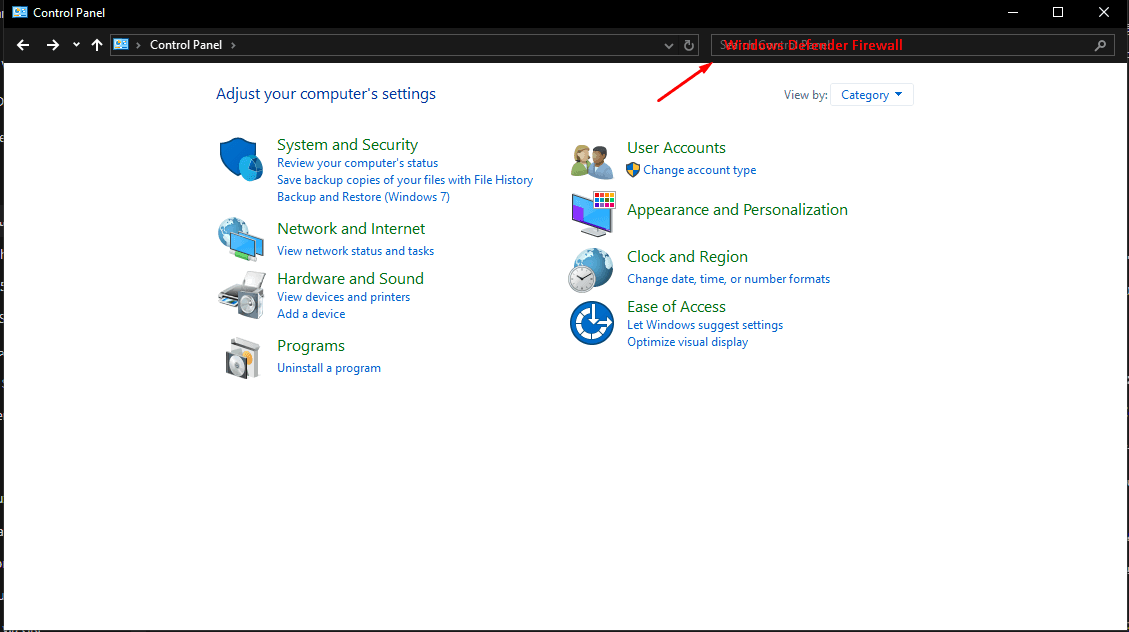
  1. Open the Control Panel:
    • Use the Windows search bar and type "Control Panel."
    • Inside the Control Panel, look for the option "Windows Defender Firewall" or simply "Firewall."
       

      Screenshot_7.png
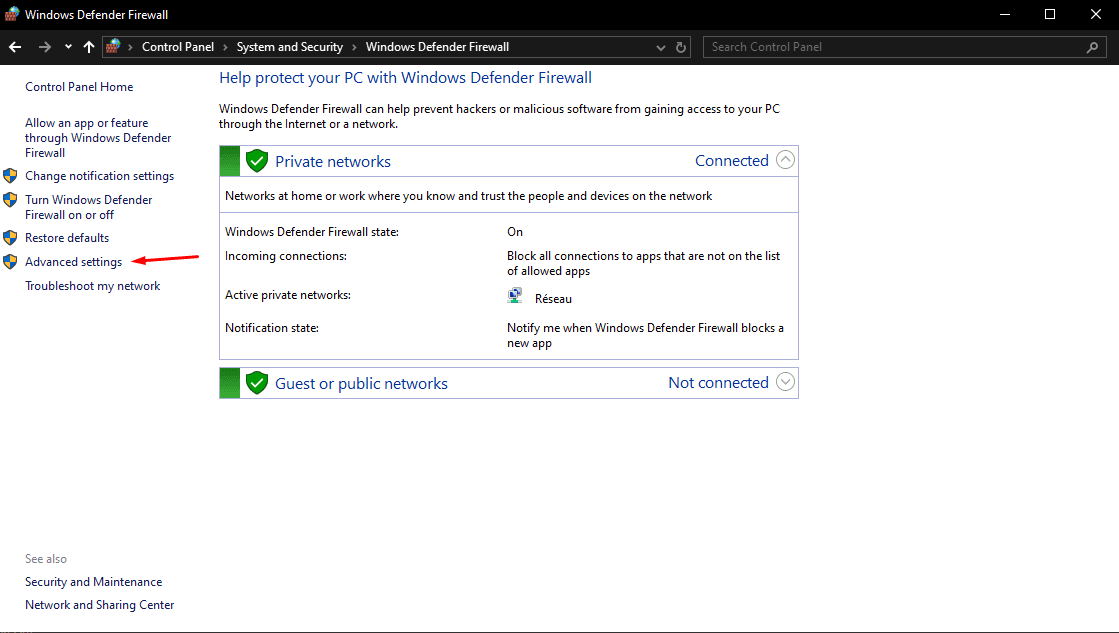
  2. Access the Advanced Firewall Settings:
    • In the Firewall window, you will find an option on the left side called "Advanced settings." Click on it.
    • A new window will open titled Windows Defender Firewall with Advanced Security.
       

      Screenshot_8.png
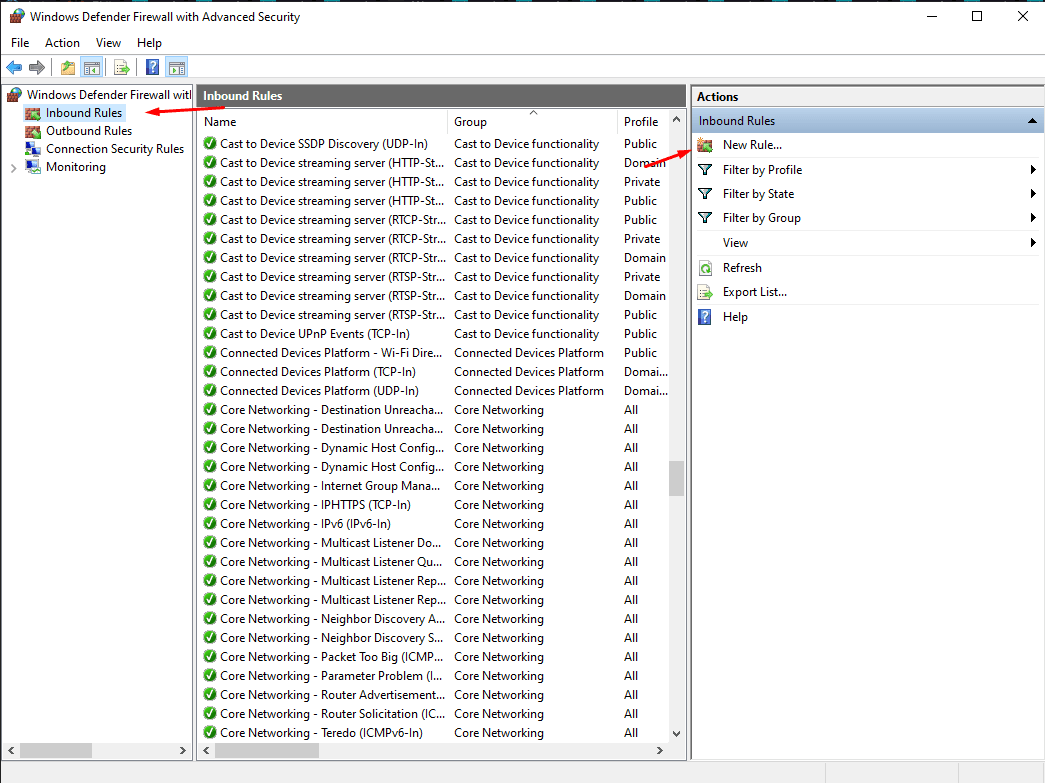
  3. Add a New Port Rule:
    • In the new window, click on "Inbound Rules" in the left column.
    • On the right side, select "New Rule...".
       

      Screenshot_9.png
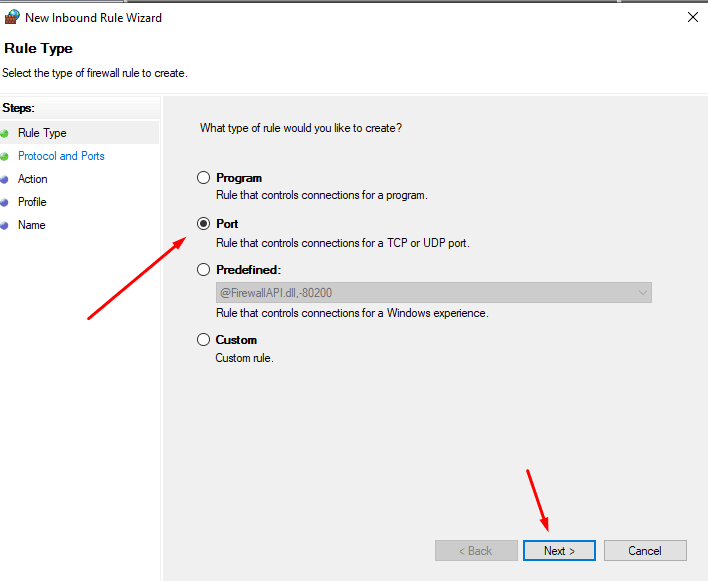
  4. Choose the Type of Rule:
    • In the New Inbound Rule Wizard window, select "Port", then click Next.
       

      Screenshot_10.png
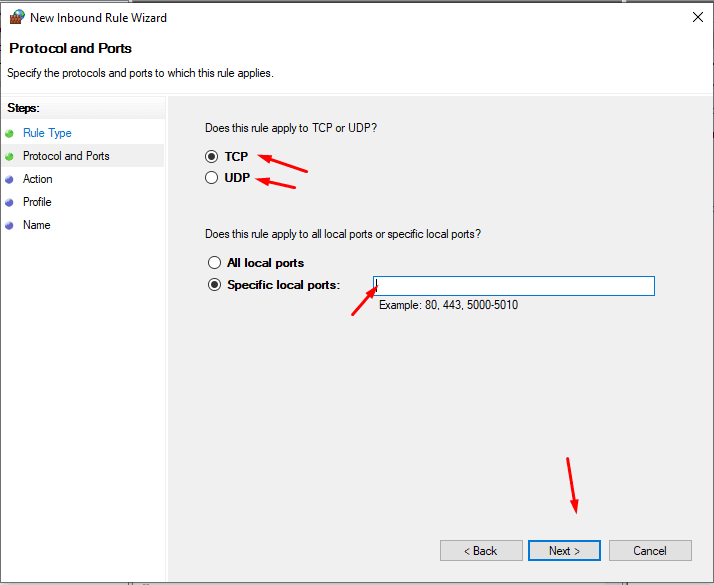
  5. Specify Protocol and Port:
    • At this stage, you need to decide whether the port you want to open uses TCP or UDP. Choose the correct protocol based on the application’s requirements.
    • In the "Specific local ports" box, enter the port number you want to open (for example, 30120 for a FiveM server).
    • After entering the number, click Next.
       

      Screenshot_11.png
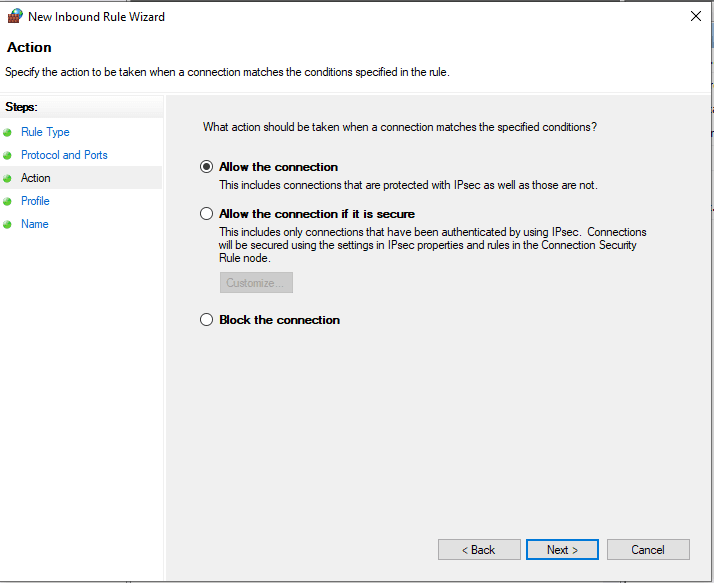
  6. Allow the Connection:
    • In the next window, select "Allow the connection" to allow traffic through the specified port.
    • Click Next to proceed.
       

      Screenshot_12.png
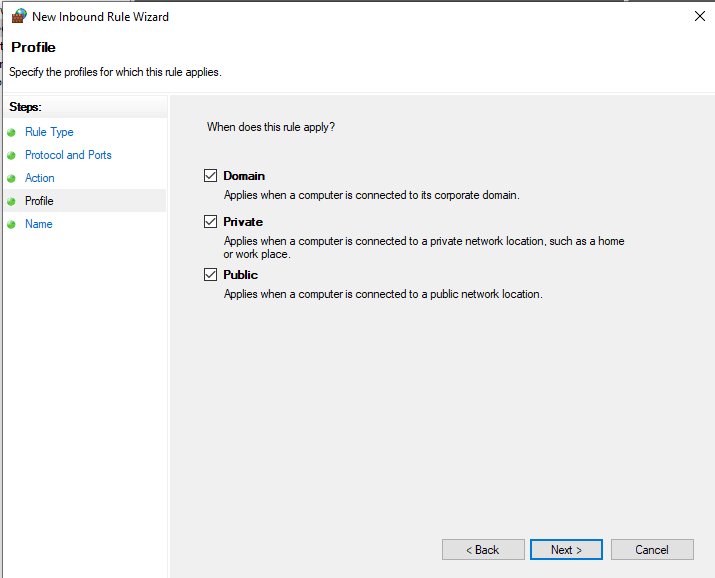
  7. Choose the Network Types:
    • Here, you will select the networks from which you want to allow incoming connections. You can choose one or all of the following:
      • Domain: Allows connections when the device is connected to a domain network.
      • Private: Allows connections when the device is connected to a private network, like home or work.
      • Public: Allows connections when the device is connected to a public network, such as a coffee shop.
         

        Screenshot_13.png
    • Select the appropriate options and click Next.
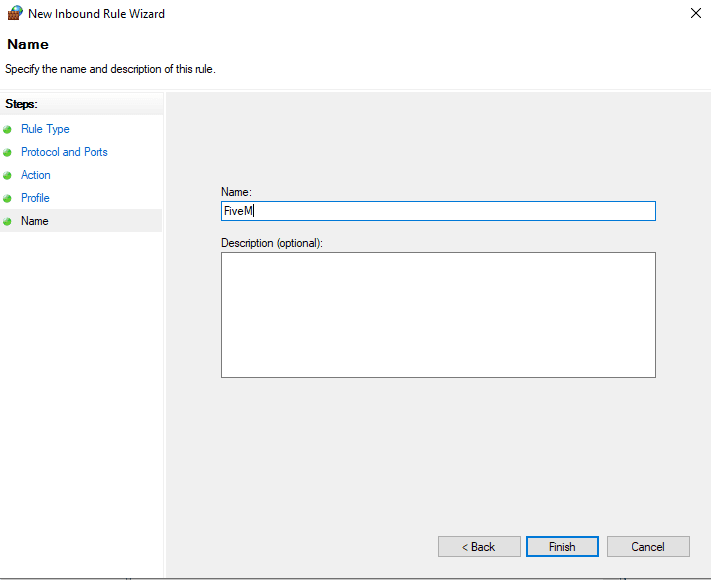
  8. Name the Rule:
    • In the final step, give the new rule a unique name that you can easily remember (e.g., "FiveM Server Port").
    • You can also add a description if desired, then click Finish.
       

      Screenshot_14.png

Additional Steps for Opening Outbound Ports

If you also need to allow outbound traffic (e.g., sending data through the port), you can follow these same steps with a slight modification:

  1. In the Windows Defender Firewall with Advanced Security window, instead of selecting "Inbound Rules" choose "Outbound Rules".
  2. Follow the same steps as above to open the necessary outbound ports.

Verifying the Port is Open

After opening the port, ensure it is working by using your server or the application associated with the port to test the connection or functionality.

Why Do We Open Ports?

Opening ports through the Windows Firewall is crucial for running many applications and servers, including game servers like FiveM. By following the steps outlined above, you can easily allow traffic to enter and exit your device through the specified ports.

Additional Explanation:

A tutorial has been created by "Labixe Host" *In The Arabic Languag* to further explain this process.

To access the video, click on the image below:

2HIlzr3M2Ck-HD.jpg


Labixe host logo
LABIXE LTD - Company Num. 13706095